
Help & Explanation
How do I create new pages and fill them?
Create homepage
Shopware 6 divides its content pages into two components: the template and the content.
You can edit the template under Content > Shopping Experiences.
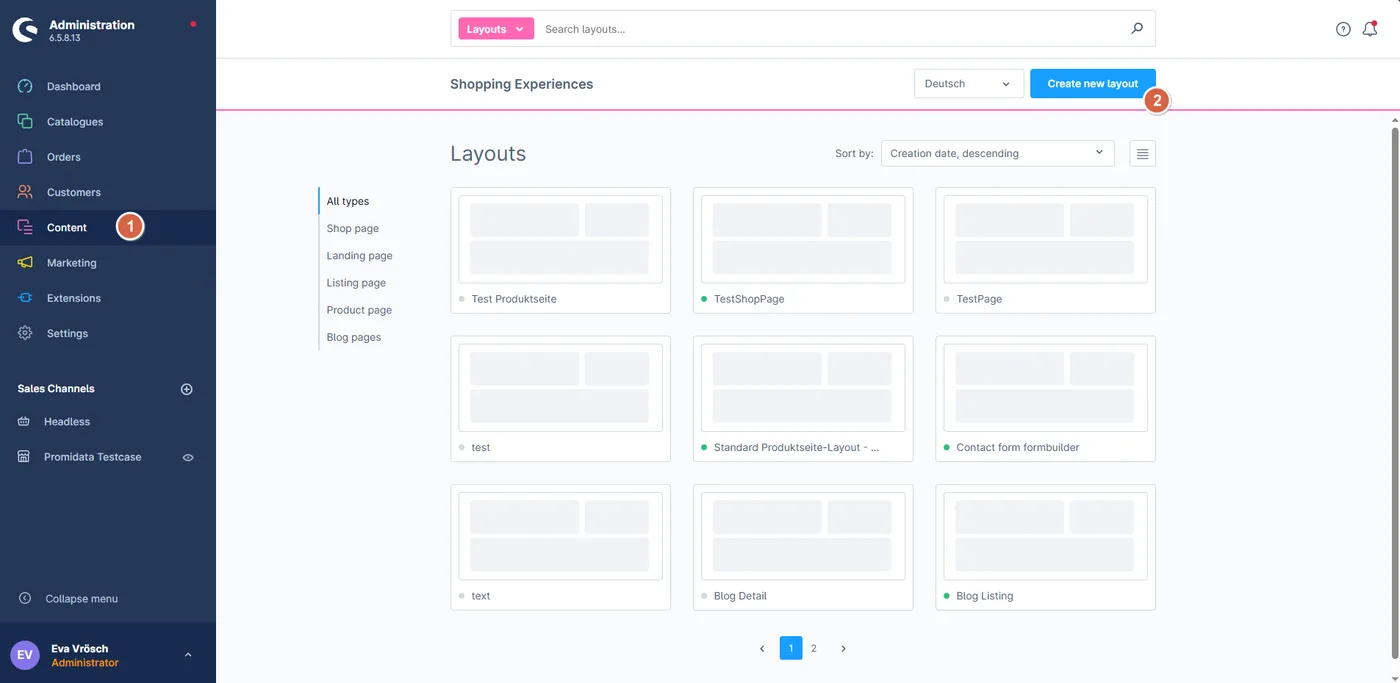
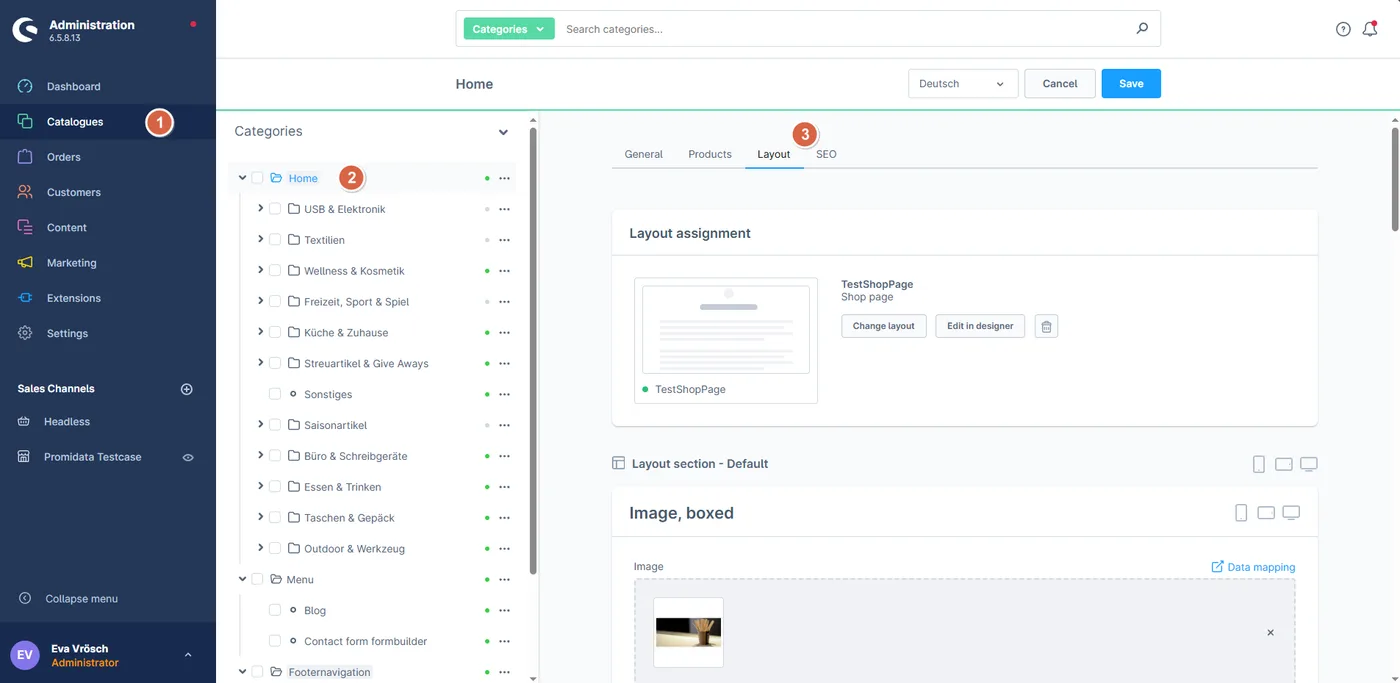
Please add the content via Catalogues > Home > Layout.
Create templates
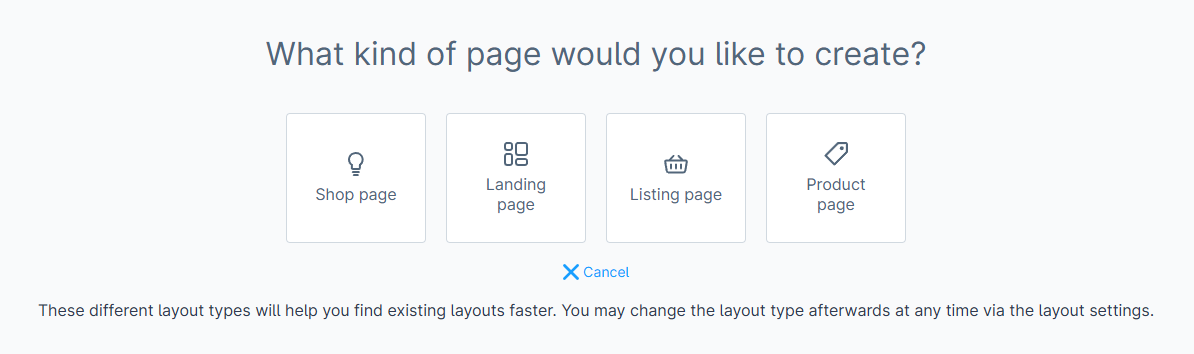
When creating a template, you can choose from 4 page types.
- Shop page: a shop page that you can populate with content blocks as desired, linked to a category.
- Landing page: a standalone page used to create pages accessible only via a specific URL, not linked to a category.
- Listing page: a product overview page. This is usually the layout for the product category pages.
- Product page: used to create a layout for the product detail page. This is not yet utilised as the product configurator is not included when creating a new product detail page.
Next, you have the option to choose between two section types: full-width page or a page with space for a sidebar. Then, give your page a name. A blank layout will open. On the right, you now have the option to expand a sidebar menu with 5 tabs.
Basic information: This includes the page name, optional CSS class, and the layout type.
Blocks: These are the elements that can be used in the layout.
Block settings: Individual elements can also be given different settings, such as a custom CSS class or a background colour. Here, you will also find the “Layout” tab, where you can set the margins around the blocks. “Visibility” allows you to restrict an element for specific displays.
Navigator: With this option, you can swap, duplicate, or delete different layout sections.
Layout assignment: This allows you to assign the layout to a category or landing page. You can also do this via Catalogues > Categories > select desired category > Layout.
Once you have filled the layout with the desired elements and their dummy data, you can save the layout and assign it to a category/landing page.
Add/modify content
Since Shopware distinguishes between the template and the content, we advise always modifying the content via Catalogues > select desired category > Layout. Changes to the content made within the template are often not applied to pages where the template is already in use. NOTE! Changes to the template structure (not content) are applied, even to already assigned pages.
Last updated: