
Help & Explanation
How do I register my online shop with Shopware and how can I download an external plugin?
Register your shop with Shopware
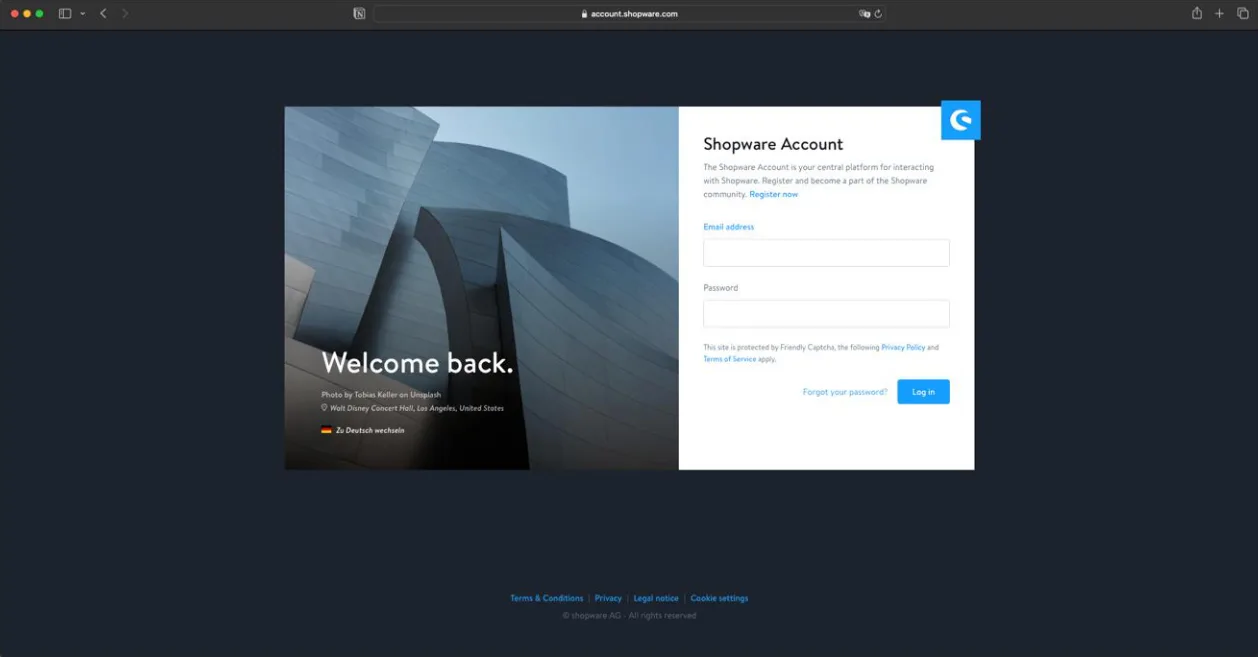
1. Create an account here: https://account.shopware.com/
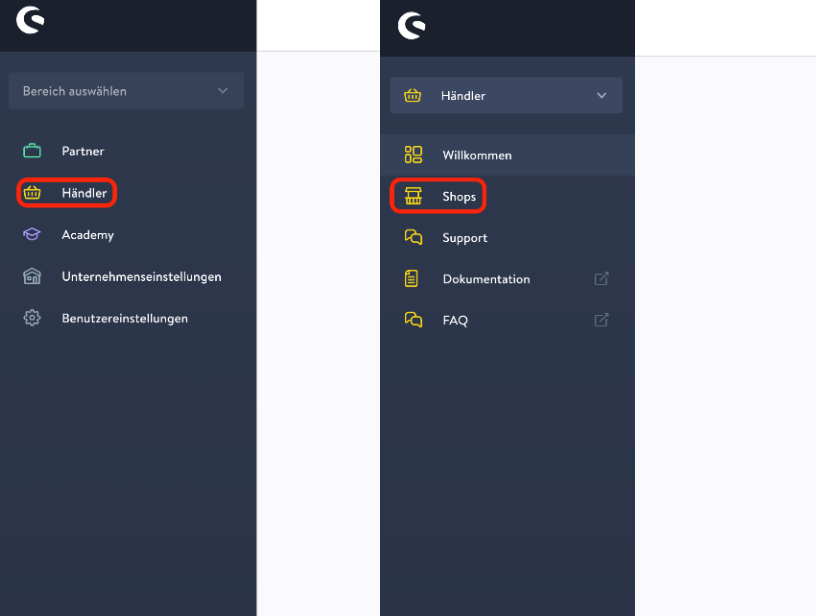
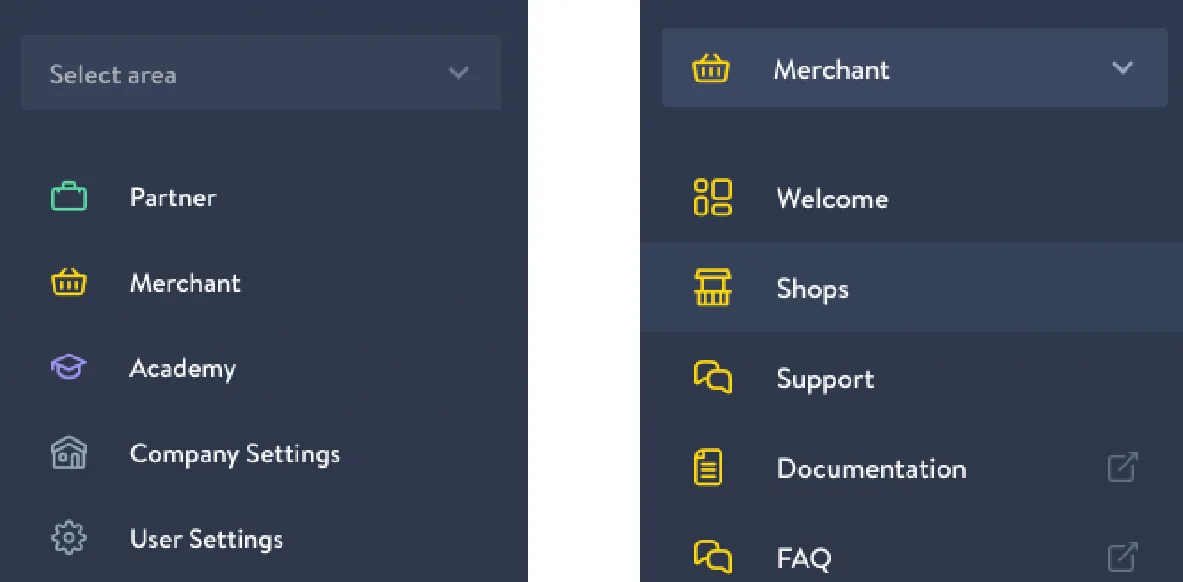
2. In the side navigation, go to ‘Retailer’ and ‘Shops’ afterwards.
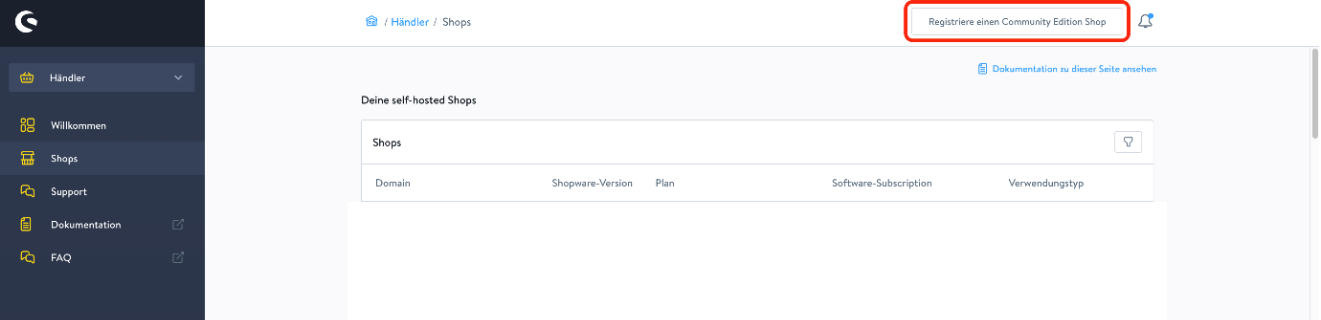
3. Click the ‘register a community shop’ button.
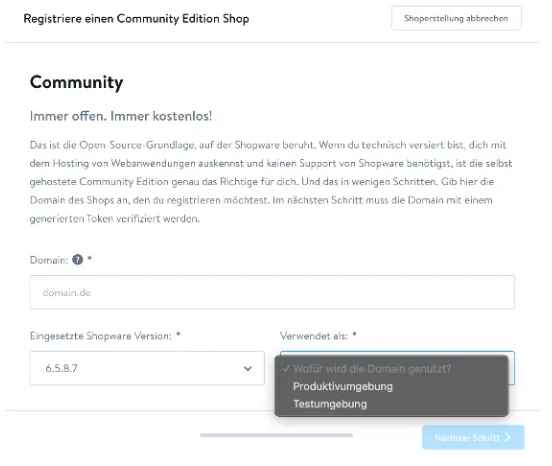
4. In the pop up, enter the shop domain, select your Shopware version and choose the production environment in the ‘used as’ window. Click next to continue.
Note 1: You can find your current Shopware version in the admin/backend area of your shop, in the upper left sidebar (SW6) or in the blue bar under the ?-icon, About Shopware (SW5).
Note 2: Your domain must be entered without https or www. (only ‘yourdomain.com’)
5. Copy the verification key in the next window and send it to your contact at Promidata.
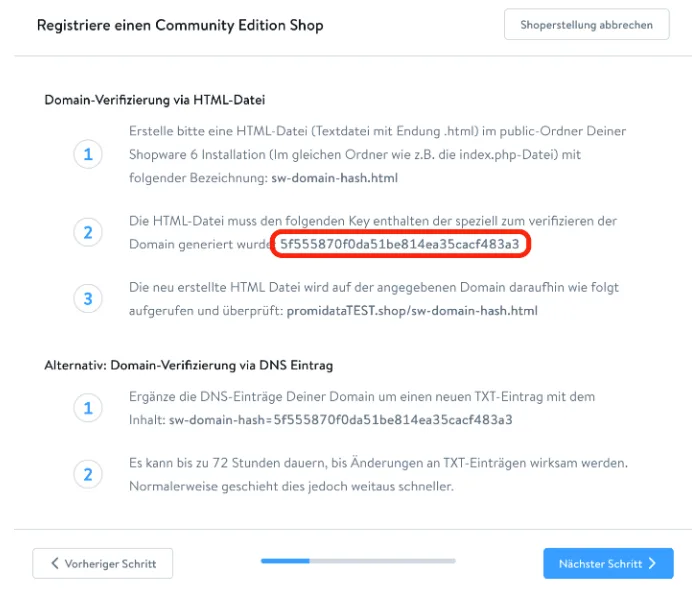
6. Wait for confirmation that the key has been entered.
7. Accept the terms and conditions and click next step.
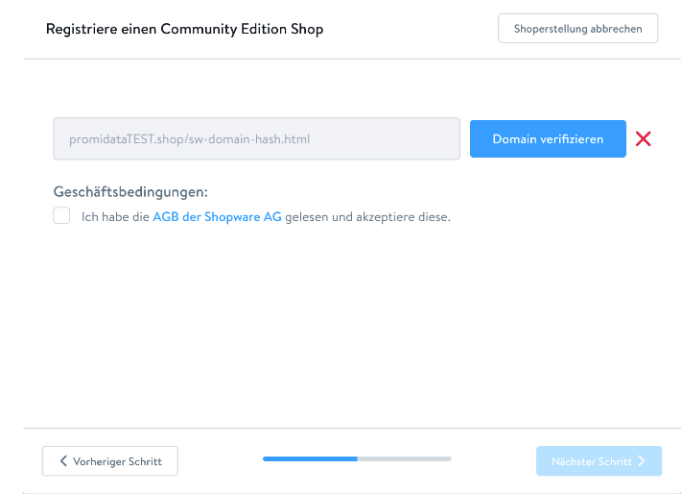
Note: The registration process may need to be repeated. However, the key does not change for the same domain.
8. If the check is successful, complete the shop registration via “Register Community Shop”.
How to download Shopware plugins from your Shopware account
1. Go to https://account.shopware.com
2. Switch to Merchant and then to Shops in the side-navigation.
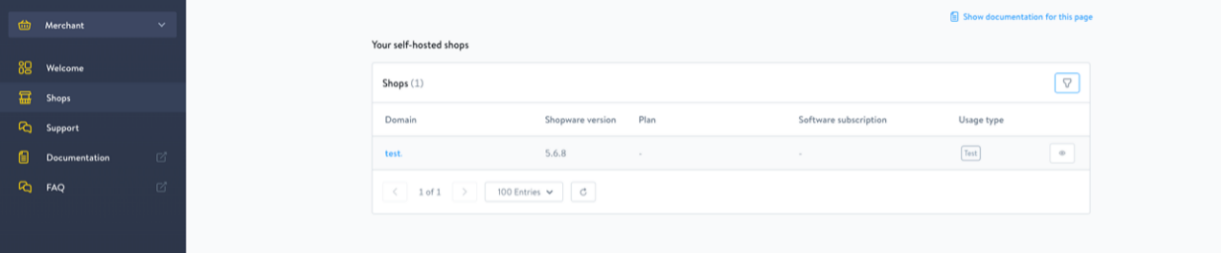
3. Click in the listing on the shop name (e.g. test).
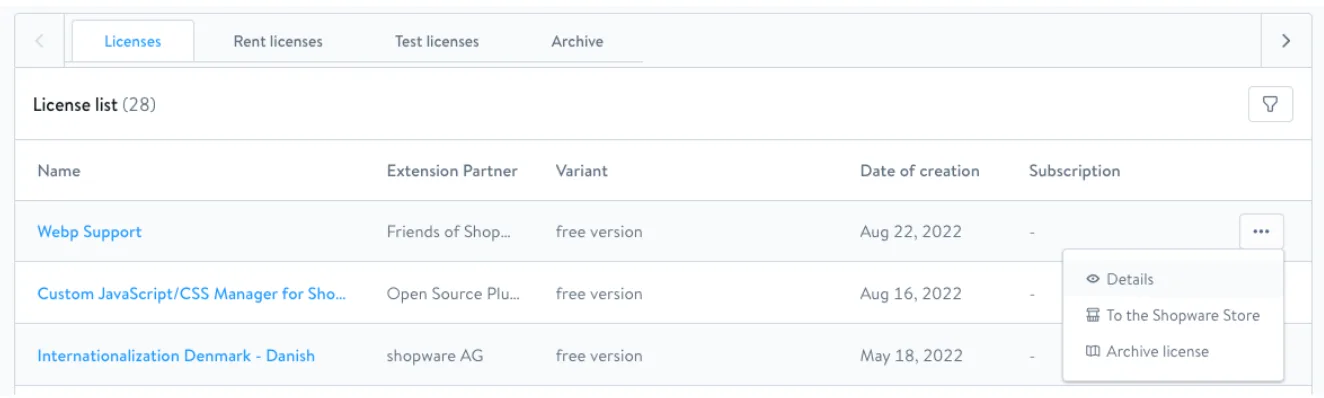
4. Scroll down to the Licenses and search for the plugin you want to install. Click on the three dots on the right side of the line and in the popup on Details.
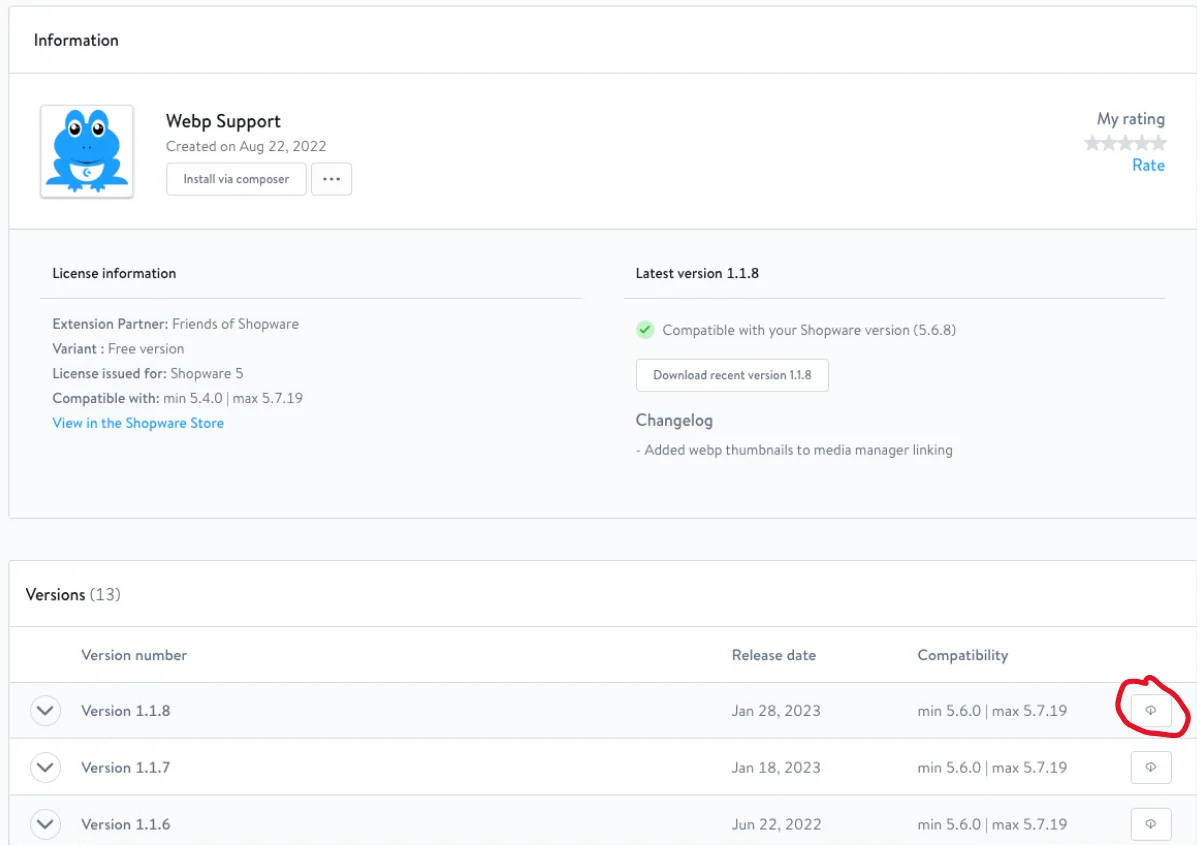
5. Under Compatibility, compare the min. and max. version with the version of your own Shopware 5 or 6 store (can be found in the admin area of the store at the top left, SW6).
6. Download the corresponding version of the plugin.
Last updated: